
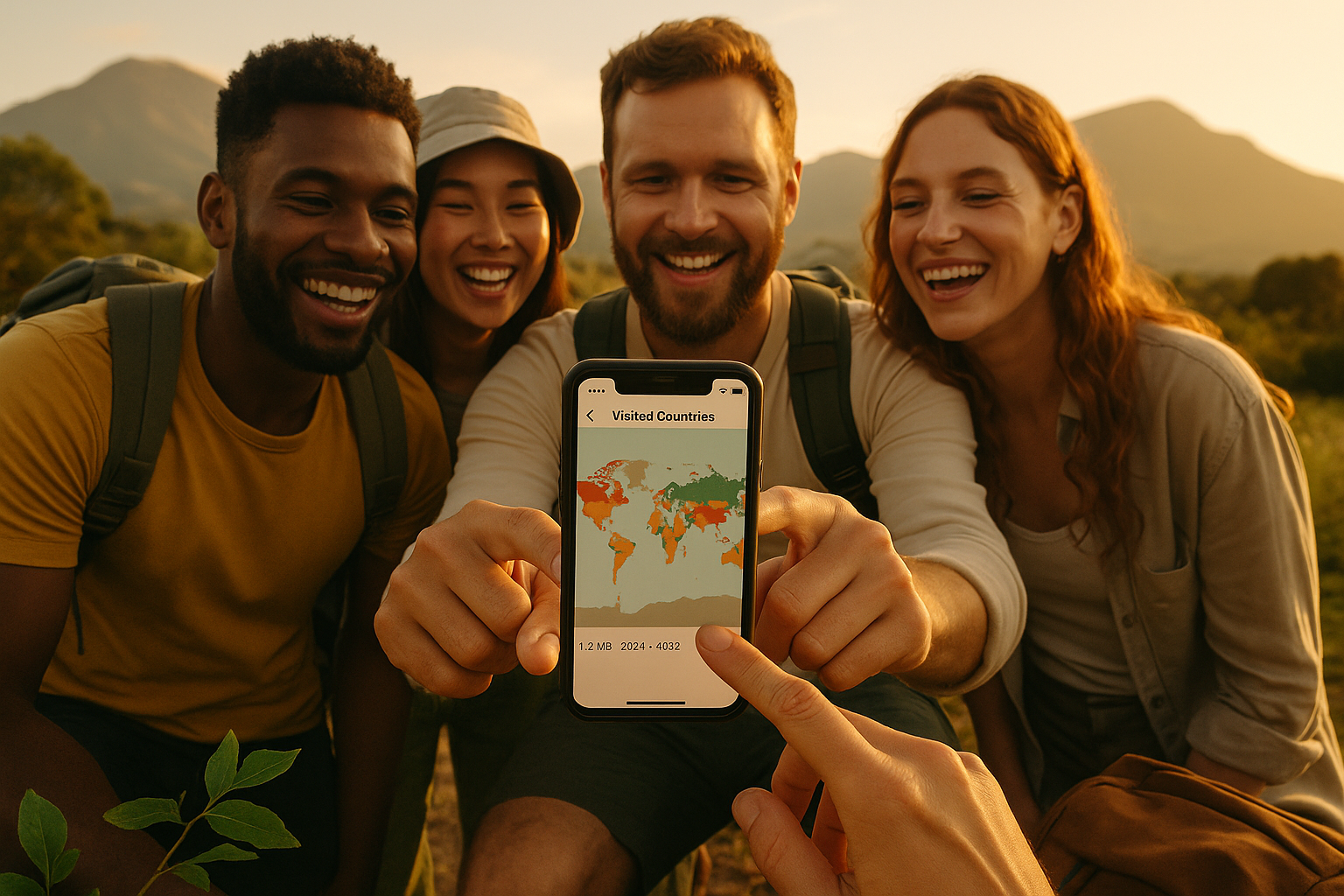
Build a Visited Countries Map From Your Photo Metadata (100% On-Device)
February 16, 2026
Your phone photos already contain years of travel history. Every geotagged photo saves GPS coordinates and timestamps in EXIF metadata. You can extract this data to build a visited countries map without uploading anything.
Days Around scans your camera roll entirely on-device. It reads EXIF metadata, matches GPS points to country boundaries, and generates your visited countries map plus compliance stats. No account required. No cloud processing. No analytics.
You've already been tracking your travel for years
Every photo with location enabled saves metadata:
- DateTimeOriginal - when you took the photo
- GPSLatitude/GPSLongitude - where you took it
A visited countries map isn't stored in your photos. It's inferred by matching GPS coordinates to country polygons.
Days Around runs this exact process on your iPhone. It keeps everything private by doing the scan and mapping locally.
Step 1: Check if your photos contain GPS data
Before installing anything, audit 10 photos from different trips.
iPhone
- Open Photos
- Select a travel photo
- Tap the Info (i) button or swipe up
- Look for a map and location name
See a map? The photo has GPS tags. No map means only timestamp and camera settings exist.
Android
- Open Google Photos
- Select a photo
- Tap the 3-dot menu → Details
- Look for Location data
Missing location on many photos is normal. Location settings change over time. Some apps strip EXIF. Exports often remove metadata.
Days Around reconstructs what your photos can prove, then lets you fill gaps manually.
Step 2: Enable geotagging for future photos
iPhone
Go to Settings → Privacy & Security → Location Services → Camera.
Recommended for travelers:
- While Using the App
- Precise Location: On (fuzzy GPS fails near borders)
Privacy-friendly option: Enable only while traveling, disable at home.
Android
- Enable Location in Settings
- In Camera app settings, turn on "Save location" or "Geotagging"
- Confirm Camera app has location permission
Exact menus vary by device. The goal: camera must save GPS tags into EXIF.
Step 3: Avoid metadata traps that break country maps
Missing GPS is common (and usually unfixable)
Photos with no GPS:
- Screenshots
- Photos with location disabled
- Downloads from social media
- App exports without EXIF
Solution: Use geotagged photos as anchors. Add manual entries for missing trips.
Messaging apps strip EXIF
Common scenario:
- You took a photo in Portugal
- Sent it via WhatsApp
- Saved the received copy
- Saved copy has no GPS
Keep originals in your camera roll. Don't rely on re-downloaded copies for travel history.
Editing can remove location
Native Photos app editing usually preserves metadata. Loss happens during:
- Exporting with "Remove location" enabled
- Sharing via services that re-encode images
- Downloading "compressed" copies
Prioritize "original" exports that preserve EXIF when merging libraries.
Shared albums change what's on-device
Two issues:
- Shared albums can strip metadata
- "Optimize Storage" means originals aren't fully local
Days Around scans via iOS photo frameworks. For fastest scanning, keep your device powered and connected.
Step 4: Generate your map without uploading anything
Private, on-device workflow:
- Read photo metadata locally (no pixel processing)
- Extract GPS points from EXIF
- Match points to country polygons using offline boundary data
- Deduplicate clusters (5,000 Lisbon photos ≠ 5,000 days)
- Output: countries map, country count, first/last seen dates, days per country
This matters because uploading photos or GPS trails creates sensitive datasets: home location, routines, client travel patterns.
Days Around keeps the entire process on your phone.
DIY vs ready-made solution
DIY approach
To build your own, you need:
- EXIF metadata reader
- Country boundary dataset (polygons)
- Point-in-polygon matcher
- Rules for edge cases: borders, airports, ferries, duplicates
Doable but becomes complex fast.
Ready-made: Days Around
For a clean visited countries map plus compliance stats:
- Processes 100% on-device
- No login required
- Uses metadata only (not image content)
- Handles large libraries (10k to 100k photos)
- Produces compliance stats, not just vanity lists
Days Around includes tools digital nomads need: Schengen 90/180 tracking and days-per-country for tax residency.
How to use Days Around for your map
- Install Days Around on iOS
- Grant Photos permission
- Run scan to extract EXIF GPS points locally
- View your countries visited map and stats
- Use built-in tools:
- Schengen 90/180 tracker
- Days per country for tax exposure
- Answer "How long was I in Spain?" on-device
Nothing uploads. No account needed. No analytics. Data stays on your phone.
What "on-device" actually means
Some apps claim "private" but send coordinates to servers.
In Days Around:
- Photo scanning runs locally
- Country matching runs locally
- Map generation runs locally
- No cloud sync required
- We never receive your location history
Verification checklist for any tool:
- Works without account?
- Functions in airplane mode after install?
- Explicitly states on-device processing?
- Avoids uploading photos, GPS trails, or location data?
FAQ
Do my photos contain GPS? How do I check?
iPhone: Open photo, swipe up or tap Info (i). See a map? It has GPS. Android: Open photo in Google Photos, view Details. Blank Location means no GPS.
How do I enable iPhone geotagging for trips?
Settings → Privacy & Security → Location Services → Camera. Set to "While Using App" with Precise Location on. Enable for trips, disable at home if preferred.
Can I build a map from old photos without location enabled?
Only for photos that already have GPS tags. No GPS means no reliable country inference. Days Around scans existing geotagged photos and lets you add missing trips manually.
Does editing remove location metadata?
Native Photos app editing usually preserves metadata. Loss happens during exporting, sharing, or downloading copies. Keep originals to preserve travel history.
Do messaging apps keep EXIF GPS?
Usually no. WhatsApp, Signal, Telegram often strip metadata. Saved received copies may have no location. Keep originals in camera roll.
Can I do this without cloud uploads?
Yes. Use on-device workflow: read EXIF locally, match GPS to offline boundaries, generate map locally. Days Around does exactly this.
Does this work with iCloud or Google Photos?
Yes, as long as photos are accessible through device APIs and locally available when scanned. With Optimize Storage, keep phone powered and connected during scanning.
Will scanning 100k photos drain battery?
Large libraries take time for metadata reading, but no pixel processing needed. Days Around handles incremental scanning. Works best when plugged in. Updates after initial scan are lightweight.
Can I exclude private photos?
iOS lets you choose "Selected Photos" instead of full access. Complete visited countries maps need full access, but privacy-focused users can start with subsets.
How do I handle multiple devices over years?
Merge photo libraries while preserving originals and EXIF. Avoid "optimized" or "stripped" exports. Once merged in one library, Days Around scans combined history.